
So you’ve just unboxed your brand new laptop — what do you do next? Before you start using it to surf the internet or finish your tasks for the day, take these steps to optimize its performance and ensure it meets your needs.
1. Update your laptop’s operating system
One of the first things you should do before using your laptop is to update its operating system (OS). Assuming you did not purchase the laptop when it was first released, it will still be running an older OS. Because important patches and fixes are released with each new update, you must install the latest ones to ensure your laptop doesn’t have vulnerabilities that malicious third parties can exploit.
5 Ways to optimize your new laptop
Get rid of these 5 types of PC clutter
Is your Windows 10 PC running slowly? It could be because of all the digital clutter your PC has to deal with. Clutter can impede your computer’s performance and eat away at its memory. To have your computer performing at top speed again, you need to get rid of clutter.
FAQs about bloatware and how to remove them
Ever powered up a brand new laptop straight out of the box and realized that there are already a ton of apps installed that you know you’ll never use? That’s bloatware, and it’s a regular occurrence when purchasing new computers.
Superfish
In mid-2014, Lenovo users noticed that something was awry with their web browsers: banner ads were breaking webpage layouts and pop-ups were making surfing unpleasant.
What to do with bloatware on Android devices

Many Android devices usually come preinstalled with apps developed by the carrier or manufacturer. These apps are called bloatware and are unwanted by many users. The bad news is that uninstalling them is difficult. The good news is that there is a solution.
Configuring Windows 10 on your laptop
Did you just buy a new laptop? Then it probably has Microsoft's newest operating system, Windows 10, pre-installed. Windows 10 is packed with some interesting features and a revamped user interface. Even if you are an expert at navigating various menus and apps, you may still need help with Windows 10's approach to computing, so let's get you started with these tips.
Enjoy an improved laptop experience

Laptops may not be the most powerful computers, but the benefits they provide are undisputable. For one thing, they deliver a similar user experience as your huge desktop PC, but much more conveniently and affordably. But before you reap their many benefits, here are five steps you should take before using them to improve their performance.
The risks posed by Windows 10 bloatware
While you might think that getting free software with your new Windows 10-powered device sounds like a good idea, it’s not. Beyond taking up storage space and diverting processing power, pre-installed software such as trial versions of video games, antivirus programs, and web browser toolbars — collectively called “bloatware” — can make your device vulnerable to cyberattacks.
Windows 10’s declutter tools clean up your PC

Is your PC running slowly? It could be because of all the digital clutter it has to deal with. Clutter can impede your computer’s performance and eat away at its memory. To have your computer performing at top speed again, you need to get rid of these five types of clutter.
How to configure your new Windows 10 laptop
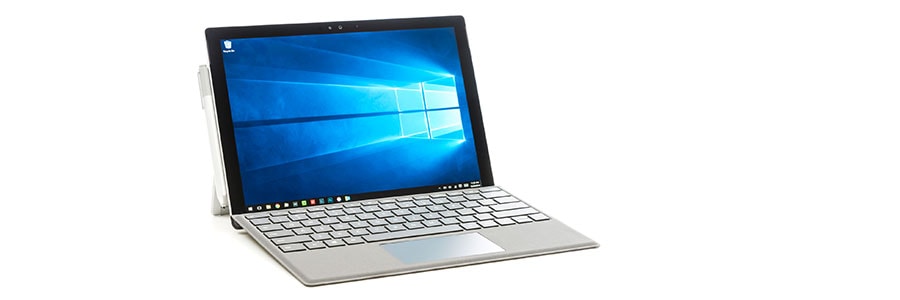
First things first, what should you do with your brand new laptop? You go through the Windows 10 setup, and you're all done, right? Not really. Your notebook isn’t ready -- until you do some tweaking. Let's get the ball rolling.
#1 Check for updates
Your new laptop should check for updates automatically, but you can also check manually.
Enhance your new laptop in 5 steps

Getting a new laptop can be very exciting. It guarantees a more seamless user experience with faster speed, more memory, and better battery life. But it’s all for naught if you don’t take certain preventive steps before using your new machine. Discover five things you should do before you start exploring your new toy.
